Creating interactive layout objects from the Data template nodes
|
Note:
|
If there is a possibility the output will be in HTML format, you can only drag the nodes to the Story view or Stories panel, or to a Story frame in the Document or Page views.
|
|
1
|
Click and drag a node from the Data template tree to the Page or Story View. An interactive layout object is created and added to the Pages or Stories panel. When dragging to the Story View, make sure you have selected a Story first.
|
|
To specify what layout object that is created by default when dragging a data item from the Data template to the Story view, see Setting default interactive object values.
|

|
You can right-click and drag the node onto the Page or Story View. When dropping the node, a list pops up where you can select the type of interactive layout object.
|
|
2
|
|
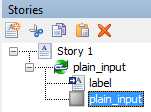
When dragging a node to the Story view, or to a Story frame in the Document or Page views, the layout object is grouped together with a label text object under a repeater object.
 This means that in the output, the end-use can click on the label as well as the layout object to select for example a check-box.
If you do not want the create a repeater with a label together with the interactive object, you can press Ctrl while dragging the node to the Story. This will just create the layout object itself.
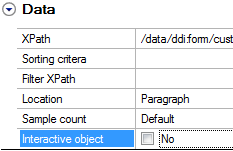
You can also de-select the Interactive object option for the Repeater object, which will disconnect the label from the interactive layout object, meaning that when the end user clicks the label, the layout objected is not selected.
|
|
2
|
In the Properties panel Interactive category, edit the properties. For more information, see Interactive properties.
|