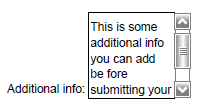
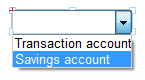
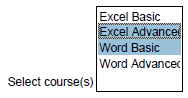
Interactive objects For unpaginated HTML and PDF output, you can add interactive objects to your document. You can add the following interactive layout object types: Text A single line text input field. Can only be resized horizontally by default. By setting the Shape property to Fixed size (Properties panel Layout category), you can also resize it vertically. Multiline text A multi-line text input field. Can be resized horizontally and vertically. Scroll bars are added when needed Check box A check box Drop-down A drop-down list where you can define the number of choices. The end-user can select only one of the choices. Button A button, for example a Submit or Reset button Radio button A radio button, i e only one selectable at a time. Listbox A list of choices where you can define the number of choices. The end-user can select zero or more among of the choices. File A text input field that expects a URI to a file. In HTML output, the end-user can browse for a file, or drag and drop the file into the File object. In PDF, you must enter the path manually. Hidden An object that is not visible but its data is submitted when end-user submits. To use interactive objects, you use the Data template where you define the data to be used with the interactive objects. Instead of the Data template, you can for example use XSLT transformation to load a data structure required for interactive objects.