|
•
|
Group input – for all multiple-choice objects, like radio buttons, check boxes and drop-down lists.
|
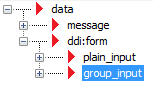
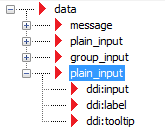
You can group nodes, e.g. a plain input node and a group input node together. This to for example have common properties on the nodes within the group. When grouping nodes, this will create a custom node that groups the selected nodes.
|
1
|
In the Data template panel, right-click on the node – typically an interactive form – where you want to insert a child node and select Insert.
|
|
Figure 25
|
 to add a
  to add a
|
Figure 26
|
|
If you have added a number of input nodes, e.g. directly under the root node, you can group them into an interactive form by selecting the nodes, and then right-click and select Grouping > Group as Form.
|

|
1
|
Select the group_input node for which you want do define selections.
|
|
2
|
In the Interactive properties panel below or to the right of the Data template panel, click in the Choices field and the
 button. The Choices dialog opens. button. The Choices dialog opens. |
|
3
|
In the Label column, enter the labels you want for the different choices.
|
|
4
|
In the Value column, enter the value that will be submitted for the choice when selected by the end-user.
|
|
5
|
Optionally, select which choice that should be pre-selected in the Selected column.
|
|
6
|
Optionally, edit the names in the Element name column. These are the names of the choices that are visible in the Data template tree.
|
|
2
|
Click the
 button. An attribute is added to the selected node. button. An attribute is added to the selected node. |
|
1
|
In the Data template panel, click the node at the level where you want to add a custom node.
|
|
2
|
Click the
 button. A custom node is added at the same level as the selected node. button. A custom node is added at the same level as the selected node. |
|
To insert a custom node as a child node to the selected node, right-click the selected node and select Insert > Custom node.
|
|
2
|
|
2
|
|
2
|
Edit the options in the property grid within the Data template panel. For more information, see Interactive properties.
|