|
Save application configuration with document
|
Saves the application configuration, i.e settings of the application. For example if the document is zoomed to 200% when you save, it is zoomed to 200% when opened.
|
||
|
Load application configuration from document
|
Load the application configuration, (i.e settings of the application the user who saved the document had set it).
|
||
|
A thumbnail showing the first page of the document is saved with the document. This thumbnail is visible when browsing for the document and Thumbnails is selected in the Open StoryTeller file dialog Views menu.
|
|||
|
Keep current Message with design for verification
|
When saving a StoryTeller Process, specify to save the current Message definition available in the StoryTeller Process together with the Process itself. You will then have the opportunity to verify any changes in the Message when opening the Process next time, by selecting Tools > Verify Message.
|
||
|
When saving a StoryTeller Process as a SSD file, specify to save the current Message definition available in the StoryTeller Process together with the SSD file.
|
|||
|
If StoryTeller tool was opened stand-alone, e.g. from the resource set, specify to load the Message when opening an SSD file.
|
|||
|
When saving a Document, StoryTeller checks if the SSD file was created with an earlier release of StoryTeller tool, and asks if you want to overwrite the file.
|
|||
|
The directory that relative paths specified on resource properties are mapped to, for example image URIs.
Default is the StoryTeller application directory where the application executable resides. When working stand-alone, you can select a document directory where the SSD files are stored.
When changing the relative path here, only documents loaded after the change are affected.
|
|||
|
The font to use in the document in design-time if the specified font is not installed in your computer. The style and size settings that are specified for the missing font are applied to the replacing font. This means you should use a font that has full capabilities. For example, for italic and bold characters.
|
|
|
Specifies if hyphenation according to the TALO library should be used for text objects and stories added to a document
|
|
|
The language to use for new text objects and stories added to a document.
|
|
|
Overflow story not fully formatted
|
Select the default setting for Stories when they are not fully formatted during runtime:
Error – StoryTeller return an error and writes it into the log. The job fails.
Warning – StoryTeller returns a warning and writes it into to log. The job succeeds.
Ignore – The formatting errors are ignored.
|
|
Other content not fully formatted
|
|
|
Default horizontal alignment
|
Align left – Text is aligned to the left by default.
Center – Text is centered by default.
Align right – Text is aligned to the right by default.
Justify – Text is justified by default.
|
||
|
Left - to - Right – Text is written from left to right.
Right - to - Left – Text is written from right to left.
|
|||
|
Enables bidirectional text within the same paragraph and shaping of Arabic glyphs.
None – Default
Simple – Arabic languages
Complex – Indic and Arabic languages
|
|||
|
None – No text rows in paragraph are by default kept together at overflow
Widows/Orphans – If the last text row in a paragraph would overflow to next Story frame, or if the first text row would be left in previous Story frame, the paragraph is instead kept together by default.
All – Paragraphs are by default kept together entirely within one Story frame.
|
|||
|
Line breaking mode - Row stretch
|
The default distance a row can stretch before a line break. If left out the default value is 72 pts. It can be useful to reduce this value if you e.g. want to enforce hyphenation to occur more often.
|
||
|
Default – Text line breaking positions are defined by properties and sequence of individual Unicode characters. This is the preferred option for non-CJK languages.
ICU – Text line breaking positions are defined using the ICU library. This option renders a better result for CJK characters, but may be slower.
|
|||
|
The width of new pages. You can change the page width for a specific page in the Properties panel Layout group.
|
|
|
The height of new pages. You can change the page height for a specific page in the Properties panel Layout group.
|
|
|
The default color for new objects added to the document, including the graphic part of charts.
|
|
|
The default color for new texts added to the document, including text in charts.
|
|
|
Use CMYK100 as default
|
Specify to use CMYK values in the 0-100 range instead of 0-255 by default.
|
|
The default name for plain input nodes in the Data template tree.
|
|
|
The default name for group input nodes in the Data template tree.
|
|
|
Default number of radio buttons in a group
|
The default number of choices when adding a radio button object type.
|
|
Paste data template together with interactive elements
|
When copying from the clipboard, select to by default paste the data from the Data template together with the layout object.
|
|
Browse for data node when creating interactive node from menu
|
When adding an interactive layout object, this allows you to select which Data template node that the layout object links to.
|
|
Data mode for new designs
|
Use transformation – Use Data template for formatting of new Documents.
Use Message – Use standard Message data.
|
|
Automatically transform message
|
Select to automatically transform Message data into a Data template for formatting of new Documents.
|
|
0-3 – Only errors are communicated.
4-5 – Errors and warnings are communicated.
6-7 – Errors, warnings, and information are communicated.
8-9 – Debug mode.
|
|
|
The name of the input connector used in the platform specified above.
|
|||||
|
|||||
|
Additional server arguments
|
|
||||
|
The executable used for running your StreamServer applications, by default <StreamServe installation>
\Platform\Core\<version>\bin\bootloader.exe. |
|||||
|
The language to use when displaying substitution data during design.
|
|
|
The language translation table to use when displaying substitution data during design. For more information, seeTranslations.
|
|
|
The font substitution table to use when displaying text during design.
You can browse to a font substitution table.For more information, see Font handling.
|
|
|
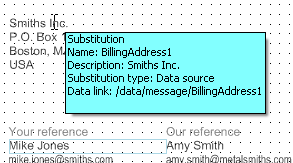
Display object properties on tooltips
|
Select the objects that you want to provide a tooltip for, with object properties.

|
||
|
|||
|
Display object boundaries
|
Select to display the scope of Repeaters and/or Switches within a text flow. To see the boundary, you must place the text cursor within the Repeater/Switch.
|
||
|
Click to open the Color dialog, where you can select the color for highlighted substitutions.
|
|||
|
Click to open the Color dialog, where you can select the color for highlighted language translation substitutions.
|
|||
|
Click to open the Color dialog, where you can select the color for highlighted Repeaters and/or Repeater boundaries.
|
|||
|
Click to open the Color dialog, where you can select the color for highlighted Switches and/or Switch boundaries.
|
|||
|
Display cursor position hint in trees
|
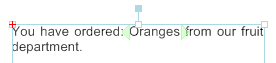
Select to visualize in the Document/Pages panels, where the text cursor is located in the Views.
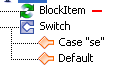
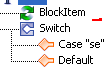
If you place the cursor inside the Oranges Repeater, you see the following symbol in e.g. the Document panel tree (By default it is red):
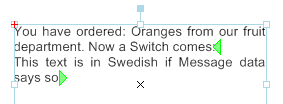
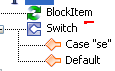
If you place the cursor right before the Switch, you see the following symbol:
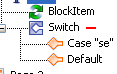
If you place the cursor within the Switch, you see the following symbol:
|
||
|
Click to open the Color dialog, where you can specify the color of the symbol displayed in the Display cursor position hint in trees option.
|
|||
|
Enables synchronization between the panels and the views. For example if you select the Document panel, the Document view is automatically displayed.
|
|
|
Specifies the location objects are pasted to. If you specify 0 for both x and y directions, the objects are pasted on top of the selected object.
|
|
|
Enables scrolling of the Document, Page and Story view to show the selected object in the panels.
|
|
|
Lets you create a chart using the Create Chart wizard when inserting a chart via the context menu (Right-click in a view or a panel). If this option is not selected, a default chart is inserted.
|
|
|
StoryTeller validates the Document at every save operation, and reports e.g. any invalid settings made in the Document and reports it in a pop-up dialog. You can select whether or not to show this dialog by using this option.
|
|
|
Report renamed items after load of Message
|
Because StoryTeller automatically renames non-XML Message definitions, a pop-up dialog is by default displayed when loading a Message, reporting the items that have been renamed. You can switch this functionality on and off by using this option.
|
|
Enables resource names to be displayed in the object trees as they were called when inserting them. Without setting this options, the resource category, for example Image, is displayed together with the current name of the resource as it is called where it is linked from.
|
|
|
When resource is modified externally
|
Request confirmation for refresh of resource – You will get prompted before updating the external resource in the target document.
Do not refresh resource – The external resource will not be updated in the Document referencing the resource.
Refresh resource automatically – The external resource will be updated in the Document referencing the resource, without prompting.
|
|
Select to make Arabic languages available when specifying language in the Properties panel, Options dialog or Processing Properties dialog.
|
|
|
Enables the user interface controls and elements related to Arabic languages.
|
|
|
Select to check the XPath syntax before setting the property value.
|
|