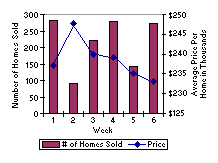
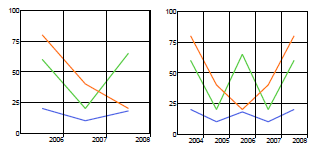
Using chart layers You can have multiple data layers in a chart, i.e. multiple graphs in the same chart, such as: Figure 59 Multiple layer examples The following procedure describes how to achieve a bar/line-chart-combo as in the image above. To create a chart with multiple layers 1 Add a bar chart. 2 In the Create chart wizard, set the following and leave the rest default: Set number of series 2 Use a static number of columns 6 Set colors manually Series 0: Set a brown color Series 1: Set a blue color Chart title, Text Week Chart title, Position Bottom Legend, Position Bottom 3 In X axes > Axis X 1 and Y axes > Axis Y 1, remove the Data label value. 4 In Support lines > Support lines 1, set the Line color to Transparent 5 Select the Data category and click the browse button. The Chart Data panel opens. 6 In Data label column, change values to 1, 2, and 3. 7 Set Label rotation to 0. 8 In the Document View, right-click the chart and select Add > Layer. 9 In the Properties panel Chart category, expand Layer 2. 10 Set Type to Line. 11 In the Chart Data panel, select Series 2 and set Assigned chart layer to Layer 2. 12 Edit the Values of the categories.
2
6