|
2
|
In the Properties panel Chart category, select Data and click the browse button. The Chart Data panel opens.
|
|
3
|
Drag fields or variables from the Message panel to the Value fields of each Category, or to the value field of a repeated category. See To enable a dynamic number of categories.
|
|
2
|
In the Properties panel Chart category, select Data and click the browse button. The Chart Data panel opens.
|
|
4
|
In the Properties panel Chart data item category, set modifications on Line thickness, Line dash style and/or Line color.
|
|
2
|
In the Properties panel Chart category, select Data and click the browse button.
|
|
4
|
Select the Category cell.
|
|
5
|

|
6
|
In the Data Selection dialog, select a field in the block that is repeated for each item in your input data, and click OK.
|
|
7
|
Select the Value cell.
|
|
8
|
Click Set modification.
|
|
9
|
In the Data Selection dialog, select the field in the block with the value used for the chart category value, and click OK.
|
|
10
|
Select the Data label cell.
|
|
11
|
Click Set modification.
|
|
12
|
In the Data Selection dialog, select the field in the block with the value used for the data label value, (normally the same as the Value field), and click OK.
|
|
13
|
Select the Legend label cell.
|
|
14
|
Click Set modification.
|
|
15
|
In the Data Selection dialog, select the field in the block with the value used for the legend label value, normally an item name, and click OK.
|
|
16
|
Select the Color cell.
|
|
17
|
Click Set modification.
|
|
18
|
In the Data Selection dialog, select the field in the block whose value is used for the color value, and click OK.
|
|
Instead of selecting a field and clicking Set modification, you can drag the field in a block to the corresponding cell in the Chart Data table.
|

|
Example 67
|
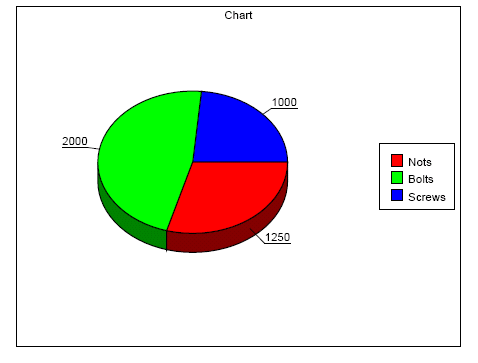
The Document Designer designs a pie chart and specifies that it will contain a dynamic number of categories.
|
•
|
|
•
|
|
•
|
|
•
|
|
•
|
|
•
|
ITEM;Nots;1,250.00;RGB(255,0,0)
ITEM;Bolts;2000;RGB(0,255,0)
ITEM;Screws;1000;RGB(0,0,255)
With this configuration, the block is repeated three times and there are three categories in the chart with the colors red, blue, and green.