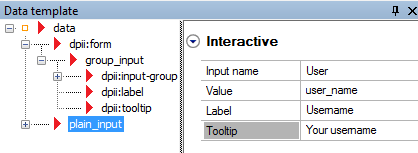
Data Template panel The data template panel displays the data tree from which you can drag data to create interactive elements on the page, or drag data to already created interactive layout objects. Attached to the Data template panel is the property grid displaying the properties for the selected object. Data template panel toolbar buttons Add plain node Adds a plain node at the same level as the selected node. Add group node Adds a plain node at the same level as the selected node. Add custom node Adds a custom node at the same level as the selected node. Add attribute Adds an attribute to the current node. Switch property grid position Switches the Interactive properties position between below or to the right of the data template tree. Edit transformation Opens the Define Transformation dialog. See Define Transformation dialog. Find linked objects Opens the Find panel with pre-filled XPath search to the selected object’s absolute path. By right-clicking in the panel you have access to the following context menu options, in addition to standard clipboard commands: Insert > Plain input Inserts a plain input child node under the current level. Insert > Group input Inserts a plain input child node under the current level. Insert > Choice If a group node is selected, this inserts a choice within the group node Insert > Custom node Inserts a custom child node under the current level. Insert > Form Inserts a Form child node under the current level Insert > Attribute Inserts an Attribute child node under the current level Add > Plain input Adds a plain input node at the same level as the currently selected node. Add > Group input Adds a group input node at the same level as the currently selected node. Add > Choice If a group node is selected, this adds a choice within the group node. Add > Custom node Adds a custom node at the same level as the currently selected node. Add > Form Adds a Form at the same level as the currently selected node. Add > Attribute Adds an Attribute at the same level as the currently selected node. Grouping > Group nodes Groups selected objects into a custom node at the same level. Grouping > Group as Form Groups selected objects into a Form object at the same level. Grouping > Ungroup Removes the selected node and puts all its child objects at the same level. Find linked objects Opens the Find panel with pre-filled XPath search to the selected object’s absolute path. Edit transformation Opens the Define Transformation dialog for the selected object. Edit root transformation Opens the Define Transformation dialog for the root node. Switch property grid position Switches the Data template property grid position between below and to the right of the Data template tree.