You can select content, either a Story or the local content in a Text area, dynamically depending on the input data by adding a Switch. The Switch is related to a Message field or variable. The value of the field or variable determines which Story is used during runtime.
By adding a Case to the Switch, you add a condition to fulfill for either a specific Story or the local content to be used.
You can add a Case that acts as the default, that is, if no other Case matches the input value this default is used.
|
If you do not add a default Case, and no Case is matched, the StreamServer will fail to create output.
|

When you create a Case, the local content of the Text area is used for the Case by default. You can select to use an existing Story for the Case, or you can create a Story from local content. If you want to edit the content of a Story that is used by a Case, you can mark the Story content as local content, and then share the new content as a new Story. The original Story is not changed, which is important if it is used in other places in the document.
You can also select to create empty content for a specific Case that previously had a Story connected to it
For a Case that has the local content of the switch, you can specify if the content is inline or in a separate paragraph.
|
To allow a Story that is used by a Case to flow between Story frames, you must add a Switch inside a Story frame.
|

|
Example 65
|
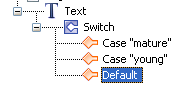
You want the value of the Message age_category field to determine what Story to use. You add two Cases to a Switch:
|
•
|
a Case that specifies that if the language field value is young, the Story_young is used. The Case key is in this case young.
|
|
•
|
a Case that specifies if the language field value is mature, the Story_mature is used. The Case key is in this case mature.
|
You want a neutral story to be used if the language field is anything else but young or mature, so you add a default Case where you specify that Story_generic is used.

|
Figure 55
|
|
1
|
Right-click in the Document, Page, or Story view and select Insert > Switch. The Data Selection dialog opens.
|
|
2
|
Select the field or variable to base the Switch on and click OK. A text area with a Switch and a Case is added to the document.
|
|
1
|
|
Note:
|
By default the Case uses the local content of the text area containing the Switch. To use a Story for the Case you must select it in the Properties panel.
|
|
2
|
In the Properties panel Switch Case category, select the Story option.
|
|
2
|
Right-click and select Switch > Use local content. The Story content is copied as local content for the Case.
|
|
2
|
|
2
|
|
2
|
|
2
|
|
Note:
|
|
2
|
|
You can drag and drop the Cases, except for the default Case, to list them in the order you want. However, the order does not affect the output.
|