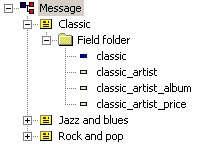
In this example you have the Message configuration in Example 5 and want the StreamServer to generate output according to Example 6.
|
Example 5
|

|
Example 6
|
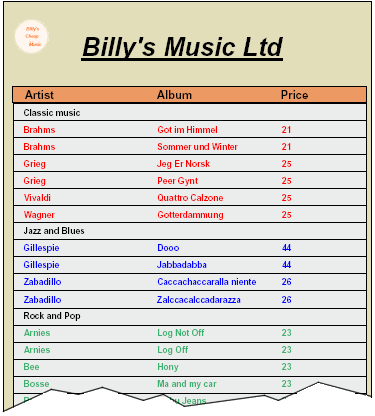
The logotype, header “Billy’s Music Ltd.”, background color, and table lines are all implemented as an LXF overlay. In this example, you have already created and added the overlay Music.lxf to the resource set.
|
1
|
Right-click the PageOUT sheet and select Add Overlay. The Add Overlays dialog box opens.
|
|
2
|
The table in the overlay is where you want to have the recurring data from the blocks Classic, Jazz and blues, and Rock and pop.
|
1
|
|
2
|
Rename the frame to Artists.
|
|
1
|
|
2
|
Drag the Classic block from the Message view to the frame on the PageOUT sheet.
|
|
3
|
Drag the Jazz and blues block from the Message view to the frame.
|
|
4
|
Drag the Rock and pop block from the Message view to the frame.
|
The steps below describe how to add the fields classic_artist, classic_artist_album, and classic_artist_price to the Classic block. The same steps apply to the other blocks.
|
1
|
In the Process view, select the Classic block.
|
|
2
|
Drag the fields classic_artist, classic_artist_album, and classic_artist_price from the Message view to the frame on the PageOUT sheet.
|
|
3
|
In the Process view, right-click the field classic_artist and select Position. The Position dialog box opens.
|
|
4
|
|
5
|
Repeat steps 3 and 4 for the other fields and change X to 72.0 and 134.0 for the field classic_artist_album and classic_artist_price respectively.
|
|
6
|
On the PageOUT sheet, multi-select the fields in the Classic block, and use the toolbar to set the font to Arial-12pt-Red-Bold.
|
|
•
|
|
•
|
|
•
|
Label_Jazz. This block is the header for the Jazz and blues block. It contains the label Jazz and Blues.
|
|
•
|
Label_Rock. This block is the header for the Rock and pop block. It contains the label Rock and Pop.
|
|
1
|
In the Process view, right-click the frame and select Add Free Block. The free block is added to the frame.
|
|
2
|
Rename the free block to Label.
|
The steps below describe how to add text labels to the Label_Classic free block. The same steps apply to the other free blocks.
|
1
|
In the Process view, select the Label_Classic free block.
|
|
2
|
|
3
|
|
4
|
|
5
|
Right-click the text label and select Position. The Position dialog box opens.
|
|
6
|
The steps below describe how to adjust the block height for the Classic block. The same steps apply to the other blocks – including the free blocks.
|
1
|
In the Process view, right-click the Classic block and select Block Properties. The Output Block Properties dialog box opens.
|
|
2
|
|
1
|
In the Process view, right-click the frame and select Frame Properties. The Frame Properties dialog box opens.
|
|
2
|
This free block should be inserted before the first instance of the Classic block. It should also be inserted as the first line after a page break.
The steps below describe how to call the Label_Classic free block from the Classic block. The same steps apply to the other blocks.
|
1
|
In the Process view, right-click the Classic block and select Block Properties. The Output Block Properties dialog box opens.
|
|
2
|
Data is already sorted according to the sort keys specified in the Event configuration: Classic => Jazz and Blues => Rock and Pop. In the PageOUT configuration we specify two sort keys:
The steps below describe how to specify sort keys for the Classic block. The same steps apply to the other blocks.
|
1
|
In the Process view, right-click the Classic block and select Block Properties. The Output Block Properties dialog box opens.
|
|
2
|