The text area you draw on the PageOUT sheet, is not the same used in the output. When you add text to a block, you have four options for how to conform the height of text area to the actual output.
|
Adjusts the height of the text area to the size of the text. The text will never be cropped using this option.
|
|
|
The height of the text area is exactly the same height as defined in the PageOUT tool. If the text does not fit, it will be cropped.
|
|
|
Behaves like the Default height option until the height of the text area equals the height defined in the PageOUT tool. If more text is added to the output, it will be cropped.
|
|
|
Behaves like the Fixed height option until the maximum height is reached. If more text is added to the output, the height of the text area will grow. The text will never be cropped using this option.
|
|
When the text is added on root level (not in frames), the Maximum height mode equals the Fixed height mode, and the Minimum height mode equals the Default height mode.
|
Center text in the Advanced Text area. Text moves toward the top and bottom as you add new text.
|
|
|
Places text at the bottom of the Advanced Text area. Text moves toward the top of the Advanced Text area as you add new text.
|
|
|
Word Wrap – Wrap text inside the Advanced Text area.
None – Disable wrapping of text.
|
|
|
None – Keep original font size.
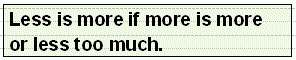
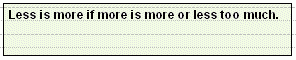
Scale to Fit – The text will be scaled, up or down, so that the longest line of text will fit into the Advanced Text area.
|
|
|
Example 18
|

|
Example 19
|

|
Example 20
|
|
Expose as section in document definition
|
Select to expose this area as a section in Composition Center. Texts and images added to the section in Composition Center will be the output in this area.
|
|
Enter the name of the corresponding section in Composition Center.
|
|
|
Use aliases to dynamically replace the text in the area. If you use an array variable, all variable values are inserted one after another.
See Dynamic selection using aliases in the Design Center documentation for information about aliases.
|
|