You can select document definitions in the web content repository, and export the selected document definitions and related resources to a zip file. The exported document definitions and resources can later be imported to another web content repository (see Importing document definitions).
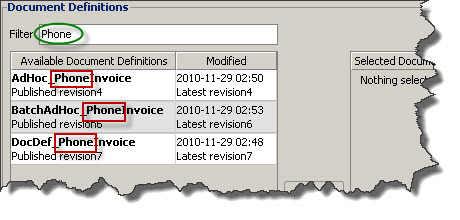
By default, all document definitions are displayed in the Available Document Definitions table. You can use the filter in this view to limit the number of resources displayed. To use the filter, you enter any sequence of characters in the Filter field. Only table items that contain the same sequence of characters are displayed in the table.

You can select whether to include all versions or only published and latest versions in the export.
|
Published and latest revisions
|
This option will minimize the risk for conflicts when importing the document definitions to the target repository. Access rights for resources set in the source environment are not included in the export. This means all resources imported to the target environment will be visible to all users in the target environment.
|
|
1
|
Click the Document Definitions category button. The Document definitions view is activated.
|
|
2
|
In the Available Document Definitions list, select the document definitions to export (use Ctrl + SELECT or SHIFT + SELECT to multi-select items).
|
|
3
|
|
4
|
Select whether to export All revisions or Published and latest revisions and click Export. A file browser opens.
|
|
5
|
Browse to the folder where to store the file, enter the file name and click Export. The selected document definition and related resources are exported to the zip file.
|