The table styles used in the Composition Center text editor are defined in a compositioncenter.css style sheet file. You can edit the style sheet file to add new customized styles or to modify the existing styles.
|
When upgrading and installing hotfixes, the compositioncenter.css file is overwritten. To save customized styles, you must store a copy of the file in a safe place before redeployment.
|

You add formatting to the style by defining CSS (Cascading Style Sheet) properties for the class. The properties should be within brackets, as described in Example 5.
|
•
|
Before updating the compositioncenter.css file, we recommend that you back up the file.
|
|
•
|
You must synchronize the Composition Center compositioncenter.css file with the corresponding style sheet file for Ad Hoc Correspondence. See Managing table styles in the Ad Hoc Correspondence and Correspondence Reviewer documentation.
|
<Portal root>\<Portal name>\css
|
Example 5
|
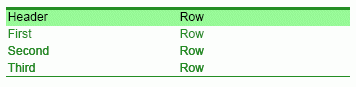
Since the heading row differs from the other table rows, you must define two new classes in the style sheet file.
In compositioncenter.css, you add a class named .CorpGreenTable for the table. The .CorpGreenTable class contains the formatting for font color, table width, thickness, and color for top and bottom borders.
.CorpGreenTable{
color:#228b22;
width:300pt;
border-top:2px solid #228b22;
border-bottom:2px solid #228b22;
}
In compositioncenter.css, you add a class named .CorpGreenHeading for the heading. The .CorpGreenHeading class contains the formatting for background and font colors.
.CorpGreenHeading{
background-color:#98fb98;
color:#000000;
}
In Composition Center, insert a new table and select the CorpGreenTable style. The inserted table have the following layout:


|
Figure 7
|
To give the heading the CorpGreenHeading style, click in the heading row, and select the CorpGreenHeading style. Now the table has the following layout: